
Quick answer: As of October 27, 2026, public outage trackers show scattered Minecraft and Xbox sign-in or connectivity complaints, but the checks reviewed for this update do not establish a confirmed, widespread Minecraft authentication outage. Start by checking service status, then refresh your Microsoft account session and repair the launcher only if the problem appears local.
Players searching for Minecraft login fixes are reporting familiar symptoms: a Microsoft sign-in window that will not open, a launcher that loops back to the login screen, “something went wrong” messages, and connection errors when joining online play. These reports are useful signals, not proof that every player is affected. Third-party trackers showed some recent user reports while other checks showed Minecraft and Xbox services operating normally. Status can change quickly, so check the official service pages before making major changes.

Is Minecraft login down right now?
Current read: reports are mixed, and a broad outage is not confirmed by the evidence reviewed. A third-party Minecraft status tracker displayed no issue detected during its latest check, while other outage-monitoring pages showed individual reports involving sign-in, connectivity, and service errors. An independent check working for one account does not prove every account or region is healthy, and crowdsourced reports alone do not prove a service-wide outage.
Before troubleshooting, check these sources directly:
- Official Xbox Status — useful when Microsoft/Xbox account authentication or multiplayer is involved.
- Minecraft Help — official troubleshooting guides and support.
- Official Minecraft download page — launcher download and update guidance.
- Third-party Minecraft outage reports — community reports can reveal patterns, but are not official confirmation.
If the official platform reports an incident or many players in different regions encounter the same error at the same time, waiting is usually the best first move. Reinstalling the game will not repair a server-side outage.
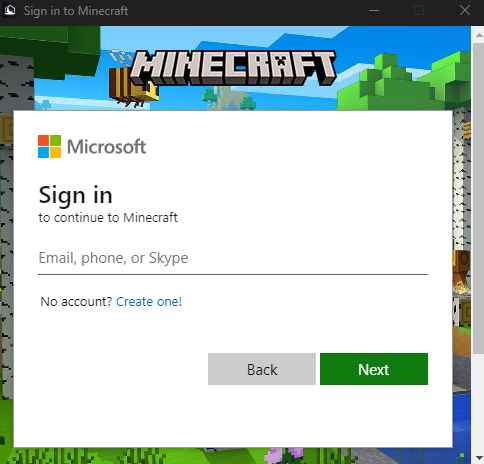
Quick fixes to try first
1. Fully close Minecraft and the Launcher
Close the game and launcher rather than simply minimizing them. On Windows, open Task Manager and check whether Minecraft Launcher or related game processes are still running. End only the relevant frozen app processes, then reopen the official launcher and try again. If the login service is temporarily unavailable, avoid repeatedly submitting your credentials; wait a few minutes and retry.
2. Sign out, then sign back in to the right Microsoft account
Use the Microsoft account that owns Minecraft or has access through the applicable subscription. On PC, the Microsoft Store, Xbox app, and Minecraft Launcher should use the account associated with your game license. Minecraft’s official sign-in troubleshooting guide recommends checking ownership and trying the Xbox app sign-in before reopening Minecraft.

3. Test whether the account works outside the game
Open your Microsoft account in a browser and confirm you can sign in. If browser sign-in also fails, use Microsoft’s official account and billing support rather than changing Minecraft files. If browser sign-in works but the launcher fails, the issue may be the app’s saved session or Windows gaming sign-in components.
4. Update the launcher and related Store apps
On Windows, open Microsoft Store and select Library → Get updates. Install available updates for Minecraft Launcher, Xbox, and Gaming Services, then restart the PC. Minecraft’s official Launcher troubleshooting FAQ notes that missing dependencies and mismatched account sign-ins can cause launcher problems.
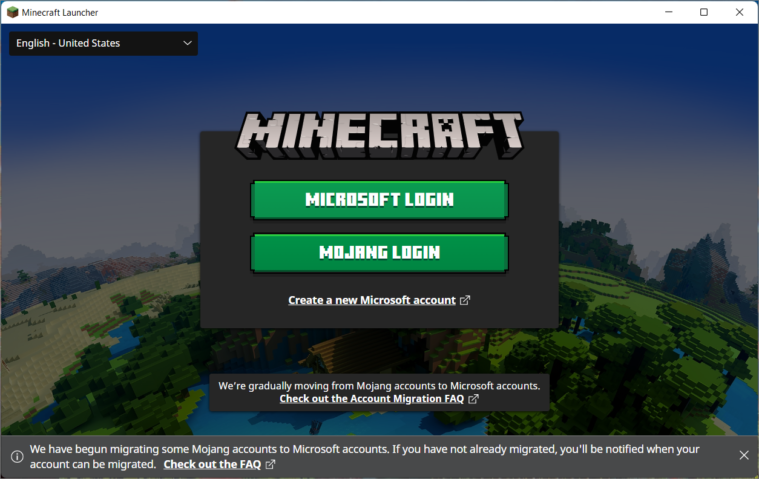
5. Repair the launcher before reinstalling it
If the problem is limited to the Windows app, go to Settings → Apps → Installed apps → Minecraft Launcher → Advanced options, then choose Repair if that option is available. Repair the Xbox app too if its sign-in window is failing. Use Reset only after reading the app’s warnings, because it can clear local app data. Reinstalling should be a later step, not the first reaction to a possible outage.
6. Check your connection, VPN, and device clock
Restart your router only if other apps also have connectivity trouble. Temporarily test without a VPN or proxy if you use one, and make sure your device’s date, time, and time zone are correct. If possible, test a different trusted network. Do not disable your firewall or antivirus permanently; if security software appears to block sign-in, use its documented app-allowlist settings.
Platform-specific advice
- Windows PC: Confirm the same licensed Microsoft account is used in the Launcher, Microsoft Store, and Xbox app. Update Store apps and try Repair before reinstalling.
- Xbox: Check official Xbox Status, fully close Minecraft, and sign out and back into the console profile if the service is healthy.
- PlayStation or Nintendo Switch: In Minecraft, open Settings and Account/Profile, then use the sign-out and sign-in flow. If the game provides a code, enter it only on the official page it names. Never share that code with another person.
- Mobile: Close and reopen Minecraft, check for an app update, and verify the correct Microsoft account is linked. Avoid clearing app storage unless your worlds and settings are backed up.
For console and mobile sign-in steps, use Minecraft’s official Microsoft account sign-out and sign-in guide.
What common login errors usually mean
- “Something went wrong” or a blank login window: The app’s sign-in flow may be stuck, or a required Microsoft/Xbox component may not be responding.
- “Drowned” or another sign-in code: Minecraft’s support guidance associates Drowned with a Microsoft account sign-in problem. Refresh the account session and check platform status.
- “We were unable to verify what products you own” or a missing Play button: Double-check the Microsoft account that owns the game or subscription before assuming the license has disappeared.
- “Invalid session” when joining a Java server: Sign out of the launcher, close the game, sign back in, and retry. If only one server fails, check that server separately.
For error-specific steps, see the official guides for Drowned and the missing Play button.
Frequently asked questions
Is Minecraft down today?
Reports reviewed for October 27, 2026, were mixed. Third-party trackers showed individual sign-in and connection complaints, but the evidence reviewed did not confirm a widespread Minecraft login outage. Check official Xbox status and Minecraft Help again before troubleshooting further.
Why does Minecraft keep asking me to sign in?
The launcher may have an expired session, the wrong Microsoft account may be active, or a related Windows/Xbox sign-in component may need an update. Sign out and back in with the account that owns Minecraft, then update the Launcher and Xbox app.
Will reinstalling Minecraft fix a login error?
Not necessarily. Reinstalling can help with damaged app files, but it will not fix a server-side outage or an account problem. Check status first, then try a full restart, account refresh, and app repair.
Should I share my Microsoft sign-in code to get help?
No. Treat login codes and passwords as private. Enter a code only on the official Microsoft or Minecraft page shown by the game, and never send it to someone claiming they can fix your account.
Bottom line
For now, treat the latest Minecraft login complaints as scattered reports rather than a confirmed global outage. Check the official service status first, then refresh the correct Microsoft account, update the launcher, and repair the app if the issue is local. If the problem continues, record the exact error, platform, and time, then contact Minecraft Support.
Written by Shivam Das. Status information can change after publication; this report reflects checks and public reports reviewed on October 27, 2026.