Quick answer: If Roblox stutters or closes while you explore The Hollow, start with lower in-game graphics, close unused apps, let an overheating device cool, and check whether the problem is graphics lag, network lag, or a full app crash. These steps follow Roblox’s general troubleshooting guidance; Roblox has not confirmed a universal, Hollow-specific crash fix.
Roblox announced that The Hollow opens to general players at 2 p.m. Pacific on October 22, 2026, with nine daily monster appearances and a live finale on October 31. The launch is a good reason to prepare your phone, tablet, Chromebook, or older laptop—but not to assume every slowdown means the event servers are broken. The most useful fix depends on what your device is actually doing.
1. Lower graphics before entering the maze
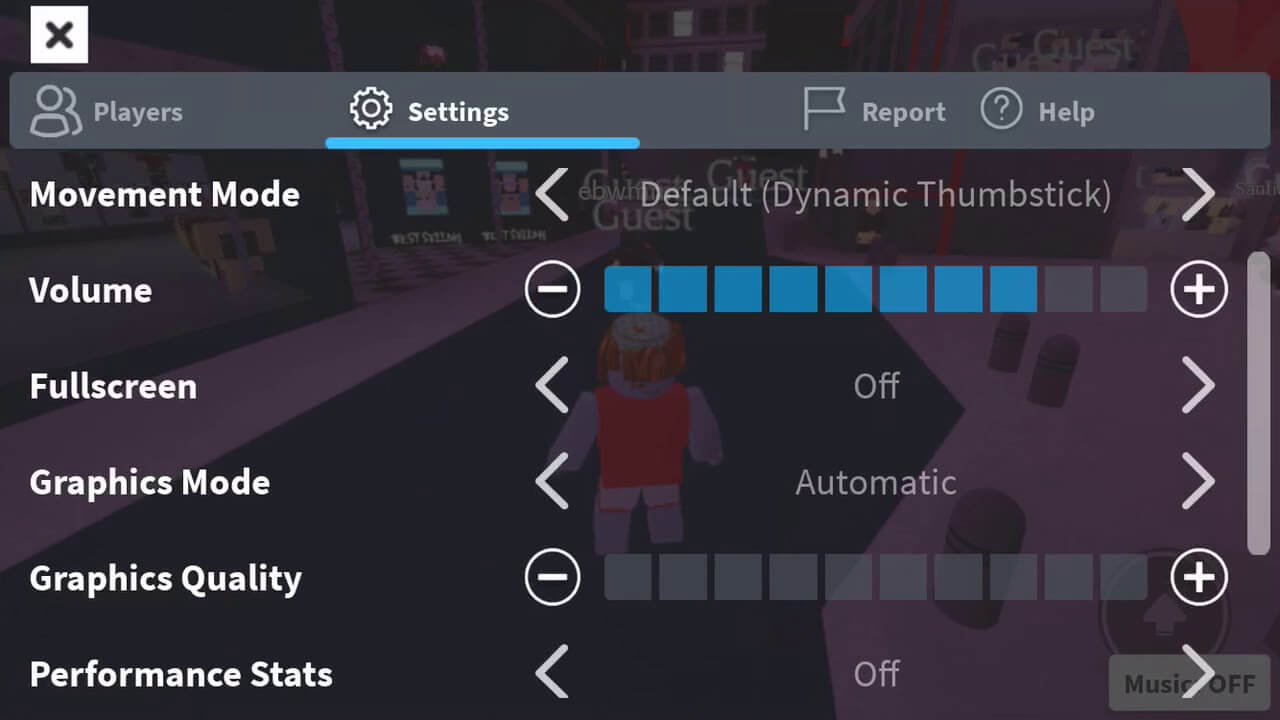
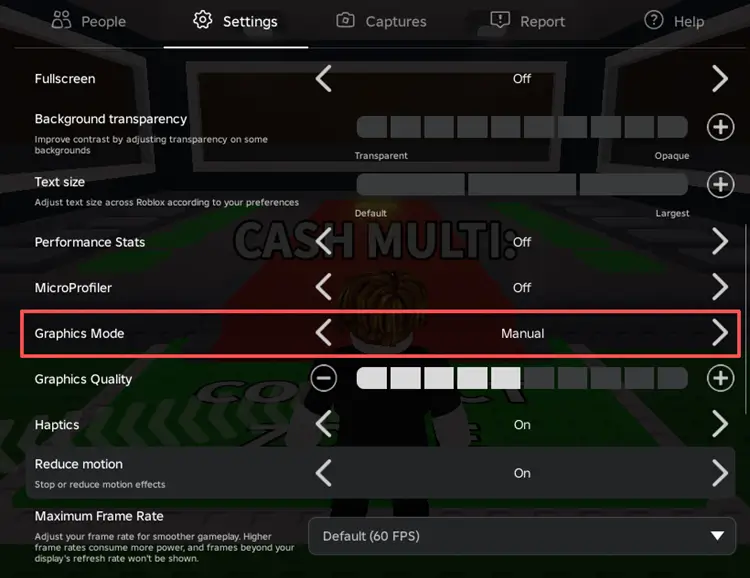
For choppy animation, slow camera movement, or a frame rate that drops in busy scenes, graphics quality is the first setting to test. Roblox Support says to open the in-experience menu, go to Settings, disable automatic graphics quality if necessary, and lower the level manually. The trade-off is straightforward: fewer visual effects and less detail in exchange for a lighter workload.
- Join Roblox and open the in-game menu.
- Open Settings and find the graphics controls.
- If the app offers Manual mode, select it rather than Auto.
- Move the graphics-quality slider toward the low end.
- Return to the experience and test the same area for a minute. Raise the level one step at a time only if the game remains stable.
There is no single best number for every phone. Older or budget devices may need a very low setting, while a newer tablet may handle more detail. Avoid changing several settings at once; testing one change at a time helps identify what actually improves performance.
2. Close background apps and reduce memory pressure
On a phone or tablet, close apps you are not using—especially screen recorders, video streams, navigation apps, and other games. On a low-memory laptop, close browser tabs and demanding programs before launching Roblox. Pause large downloads and operating-system updates until after the session.
If the device becomes unusually hot, leave the experience and let it cool before trying again. Heat can cause some devices to reduce performance. Keep laptop vents clear and avoid covering a phone or tablet with bedding while playing. Do not install unofficial “FPS boosters,” modified Roblox clients, or memory-cleaner apps that request broad permissions; they can introduce security and account risks rather than solve the underlying issue.

3. Know whether it is graphics lag, network lag, or a crash
These problems can feel similar in a tense maze, but they need different responses.
| What you notice | Likely area to check | First step |
|---|---|---|
| Choppy movement or camera turns | Graphics or device performance | Lower graphics and close background apps. |
| Players teleport, or actions respond late | Network connection | Try stable Wi-Fi and pause downloads. |
| Roblox closes or returns to the home screen | App, memory, compatibility, or experience issue | Restart Roblox and the device; check for updates. |
| Only one maze or experience has trouble | Possibly experience-specific or server-side | Rejoin once, then compare with another Roblox experience. |
Lower graphics can help with visual stuttering, but it will not repair a weak internet connection or guarantee that an app crash stops. If the whole platform is affected, check the official Roblox status page before repeatedly restarting your device.

4. Update safely and check device compatibility
Install Roblox updates through the official app store or Roblox’s official site, and install operating-system or graphics-driver updates from your device maker. Roblox’s published mobile requirements list iOS/iPadOS 14 or later for Apple devices and Android 8.0 or later with OpenGL ES 3.0 support for Android devices. Meeting minimum requirements does not guarantee that every experience will run smoothly on older hardware.
If the app keeps closing, fully quit and reopen Roblox, restart the device, and test another experience. If other games work but The Hollow repeatedly fails in the same place, record the device model, operating-system version, approximate time, and what happened. Report reproducible problems through official support channels rather than relying on unverified social posts claiming there is a guaranteed fix.

5. A quick pre-maze checklist
- Set graphics to Manual and lower the quality if the device struggles.
- Close unused apps, browser tabs, downloads, and recording tools.
- Let a hot device cool; keep laptop air vents unobstructed.
- Use a stable connection and pause large downloads.
- Update Roblox through an official source.
- Know how to check Roblox’s official service status.
For event details, read Roblox’s official announcement of The Hollow. You can also review Roblox Support’s guides to reducing lag, graphics quality, and mobile system requirements. For related event coverage, see how The Hollow’s shared hub and mazes work and practical ways to manage mobile battery drain during launch queues.
Frequently asked questions
What graphics setting is best for a low-end device?
Try Manual graphics mode with a low quality level, then test and adjust gradually. The right setting depends on your hardware and the experience.
Will lowering graphics stop The Hollow from crashing?
It may help if graphics performance is the cause, but it cannot guarantee a fix for memory limits, app faults, network issues, compatibility problems, or an experience-side issue.
Why do other players teleport when my game lags?
That can indicate network lag rather than graphics lag. Test a stable connection and pause large downloads; lowering graphics alone may not help.
Should I download a third-party FPS booster?
No. Start with Roblox’s built-in settings and official support guidance. Avoid modified clients and tools that ask for your password, verification code, or browser session data.
Reporting note: Roblox has announced The Hollow’s event schedule and broad mechanics, but this guide does not claim Roblox has confirmed a specific Hollow-only crash bug. Troubleshooting recommendations are based on Roblox’s general support documentation.