Quick answer: On a low-end phone, try Manual Graphics Mode with Graphics Quality near the low end, close memory-heavy background apps, use a stable connection, and keep Roblox and your operating system updated. These steps may improve performance, but no setting guarantees that The Hollow—or any Roblox experience—will stop crashing on every device.
Roblox’s The Hollow Halloween survival event is scheduled to open at 2 p.m. Pacific Time on October 22, 2026, with Roblox Plus subscribers getting early hub access at noon PT. The event features nine horror-game monsters over nine nights. Performance can depend on your phone, the experience, and your connection—not just one graphics setting. Read Roblox’s official event announcement for confirmed details.
Best low-end phone settings for Roblox The Hollow
Roblox has not published a Hollow-specific crash-rate benchmark or a setting that guarantees fewer crashes. These recommendations follow Roblox Support’s general guidance for graphics lag and low-memory warnings. Change one setting at a time so you can identify what actually helps your phone.
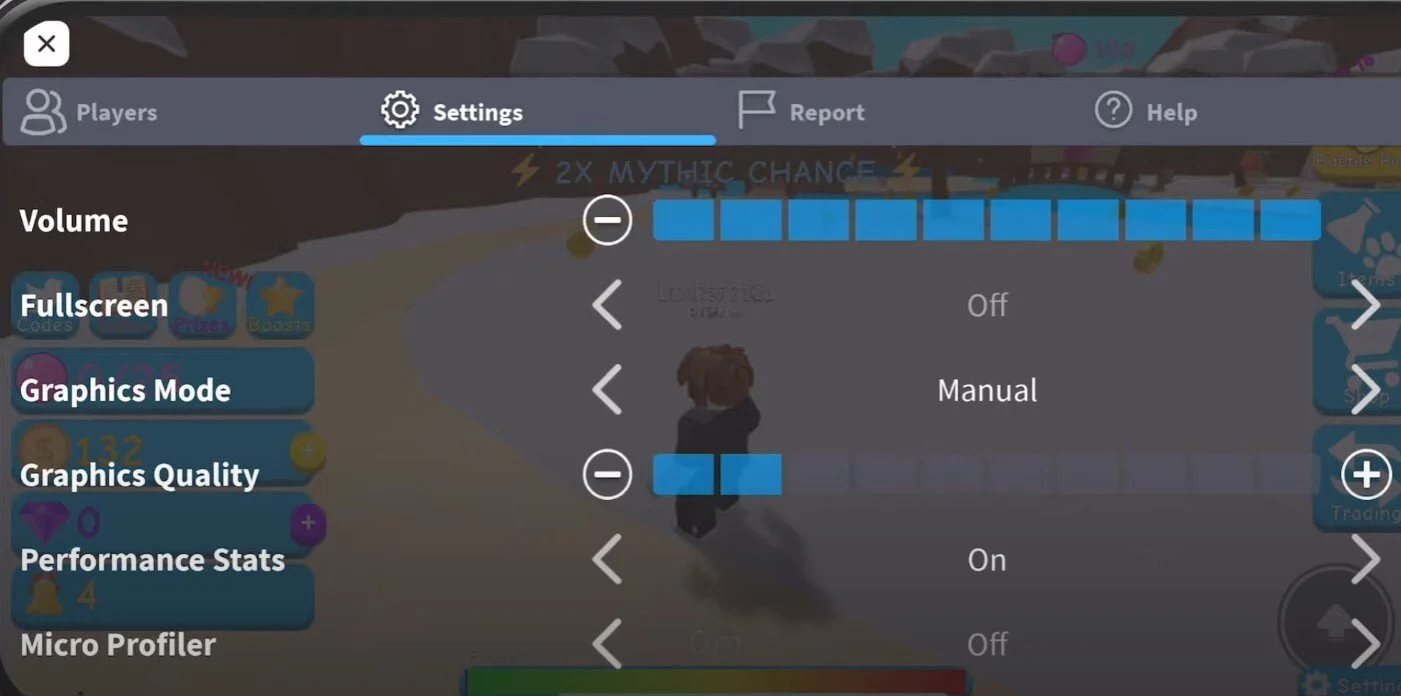
1. Lower graphics quality before joining a busy event
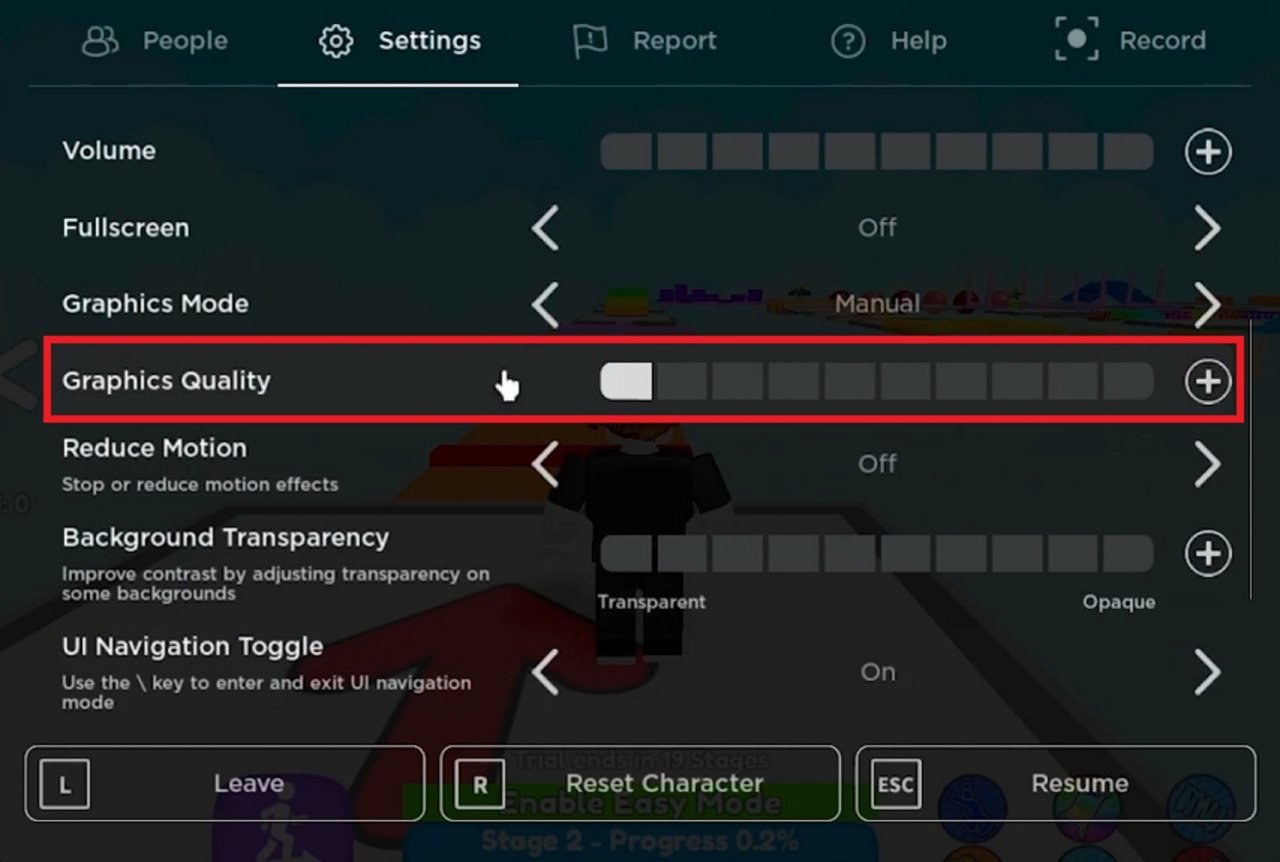
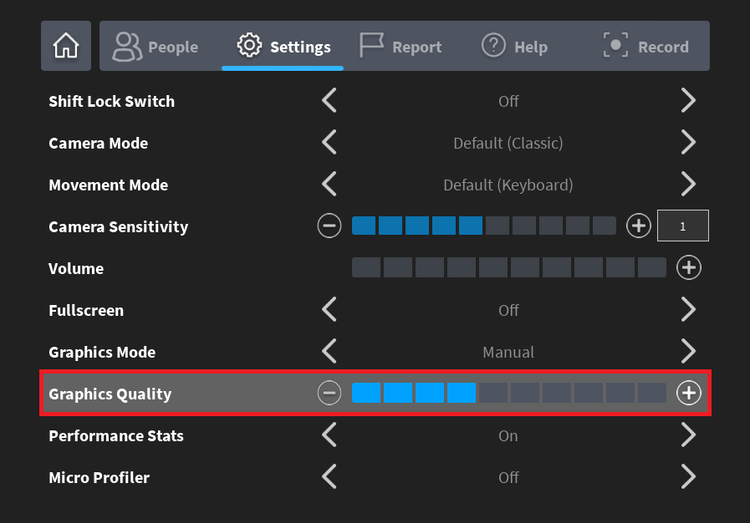
Open an experience, open the in-game menu, and select Settings. If manual graphics control is available, change Graphics Mode to Manual and move Graphics Quality toward the lower end. Start low, then raise it gradually only if the game stays smooth. Lower quality reduces visual detail but can reduce the work your device has to do.
Roblox’s official instructions say moving the Graphics Quality slider left favors performance, while moving it right favors visual quality. Menu layouts may differ by device and app version. Read Roblox Support’s Graphics Quality instructions.
2. Close apps that compete for memory
Before launching The Hollow, close video editors, large games, screen recorders, browser tabs, and other apps you do not need. Roblox documents an iOS low-memory warning (Error Code 292): when memory runs short, a crash becomes more likely. Roblox recommends leaving safely if the warning appears, then rejoining in a more stable state. Closing background apps and lowering graphics may help, but storage space and RAM are not the same thing. Roblox Support: iOS low-memory warning.
3. Tell graphics lag apart from network lag
If the picture freezes or movement becomes choppy, the device may be struggling to render the experience. If players teleport or actions take a long time to register while the picture remains smooth, the connection may be the bigger issue. Use stable Wi-Fi when available, move closer to the router, and pause large downloads or streams on the same network. Lower graphics will not fix a weak connection by itself.
Roblox explains the difference between network, graphics, and system lag in its official lag troubleshooting guide.
4. Check whether your phone meets Roblox’s requirements
Roblox lists iOS 14 or iPadOS 14 and newer for iPhone and iPad, and Android 8.0 or newer with OpenGL ES 3.0 support for Android devices. Meeting minimum requirements does not guarantee every experience will run smoothly, especially on older hardware or during demanding scenes. Check the current official list before spending time troubleshooting a device that may not be supported. Roblox Mobile System Requirements.

5. Update carefully and test before peak time
Install app and operating-system updates from official sources, then restart your phone if it has been running for a long time. Avoid unofficial “FPS booster” apps, modified clients, or downloads asking for your Roblox password. They are not an official fix and can put your account or device at risk.
Before the event gets busy, join a normal Roblox experience and play for a few minutes with lower graphics. If it remains stable, try The Hollow and change one setting at a time. If Roblox crashes repeatedly, note your phone model, operating-system version, Roblox app version, crash time, and any error message before contacting Roblox Support.
Low-end phone checklist
- Set Graphics Mode to Manual when available.
- Move Graphics Quality toward the lower end and test stability.
- Close unnecessary apps and stop background downloads.
- Use a stable connection; distinguish network delay from choppy graphics.
- Check your phone against Roblox’s current mobile requirements.
- Install official updates and restart if needed.
- Do not assume graphics caused every crash; memory limits, app issues, experience bugs, and network problems can also matter.
Frequently asked questions
What are the best Roblox settings for a low-end phone?
Start with Manual Graphics Mode and a low Graphics Quality level if your device offers those controls. Close unnecessary apps and use a stable network. Raise graphics gradually only if performance remains smooth.
Will low graphics stop The Hollow from crashing?
No setting can guarantee that. Lower graphics may help when the device struggles to render the game, but crashes can also result from low memory, unsupported hardware, app issues, or experience bugs.
Does low graphics fix Roblox lag on mobile data?
Not necessarily. Lower graphics targets graphics-related stuttering. If players teleport or actions take a long time to register, check your connection and try a more stable network.
What should I do if Roblox shows a low-memory warning?
Follow the warning’s instructions and leave safely if needed. Close unused apps, lower graphics quality, and rejoin when the device is more stable. Repeated warnings may indicate that the device does not have enough available memory for that experience.
When does The Hollow start?
Roblox’s official announcement says the event opens at 2 p.m. Pacific Time on October 22, 2026, with early hub access for Roblox Plus subscribers at noon PT. Check the official announcement for updates and regional availability.
Roblox settings discussion on X
This X post shows a Roblox Display & Graphics settings screen. It is included as a visual reference for the settings described above; it is not evidence of a measured crash-rate improvement.
View the original Roblox settings post on X
Sources and further reading
- Roblox: The Hollow Halloween survival event
- Roblox Support: Graphics Quality
- Roblox Support: Reduce lag and speed up play
- Roblox Support: Mobile system requirements
- Roblox Support: iOS low-memory warning
By Shivam Das